We have seen lots of photos of space and planet over internet.. why not to create them ? Creating space or planet in photoshop can teach you some great techniques. Here we have collected some explosion, planet and space tutorials designed using photoshop just have a look at all of them.

1. Creating a Galaxy in Photoshop

2. Planet Ring Tutorial

3. Create a Space Explosion From Scratch in Photoshop

4. Create a Spectacular 3D Space Explosion

5. Create a supernova in Photoshop

6. Create a Trendy Galactic Poster Design in Photoshop

7. The White Tree

8. ‘Planet Tutorial

9. Space Explosion Photoshop Tutorial

10. Retro Geometric Vectors in Space with Illustrator and Photoshop

11. The Beauty From The Outside

12. The Orange Sky

13. Creating an Awesome Space Effect

14. Space Lighting Effects in 10 Steps – Photoshop Tutorial

15. Create a Realistic Space Scene from Scratch with Photoshop

16. Dark Fantasy Art Photoshop tutorial – Fairy and Sunset Landscap

17. Creating A Fantastic Fantasy Night Sky In Photoshop

18. The Magic Night

19. Space Scene Design in Photoshop

20. Fiery Photoshop Space Explosion Tutorial

21. Make a Realistic Star Field

22. Make a Planet

23. Photoshop Space and Planet Tutorial

24. AHHHHH! Oy! Alien Invasion! A Photoshop Tutorial..

25. The End Of The World

26. Create a Realistic Outer Space Scene in Photoshop

27. Photoshop Tutorial: Space Environment

Source : http://acrisdesign.com/2009/10/27-excellent-planet-and-space-photoshop-tutorials/
NOTE : ALL CREDITS FOR THE ORIGINAL TUTORIAL MAKER :)
=================================
=== For more tutorials keep visiting ;) ===
= http://photoshop-manic.blogspot.com =
=================================
Adobe Photoshop Training - Photoshop Classes -
Photoshop Tutorial - Photoshop Seminars -
Photoshop CS3 - Photoshop CS4 - Photoshop 7 -
Photoshop Tutorial Downloads - Lots more :-)


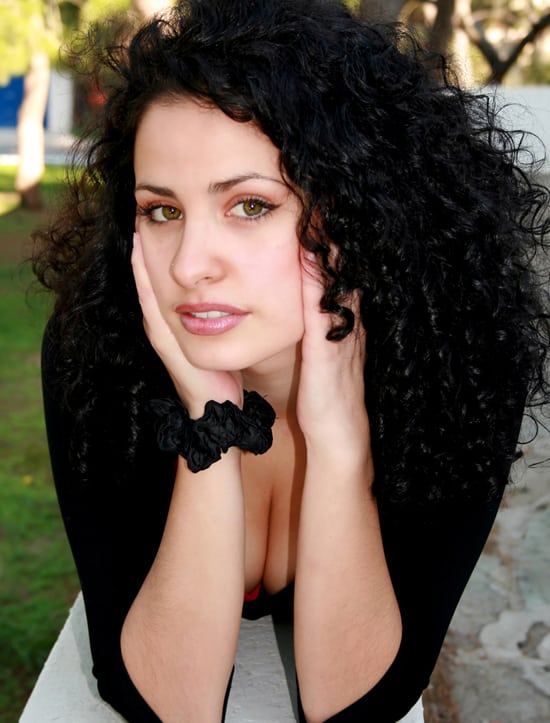


 Click Filter.
 Click Convert for Smart Filters.
 Click OK in the message box.
 Click Filter.
 Click Blur.
 Click Gaussian Blur.
 Click and drag the Radius slider to blur the image.
 Click OK to apply the blur.
 Click here and select Screen.
 Note that the image becomes very light.
 Click here to add a layer mask.
 Click here to open the Brush Picker.
 Click a soft-edged brush just large enough to outline the eye area.
 Click the Airbrush thumbnail.
 Click here and drag the slider to the left until 40% appears in the Opacity field.
 Paint over the eyes and other important features to bring them out.
 Click here and drag the Layer Opacity slider to the left to get the amount of glow that you want.