Showing posts with label Photoshop Resources. Show all posts

Sunday, November 30, 2008

Rotating Brushes

You all know that I’m a huge fan of keyboard shortcuts and simplifying the Photoshop workflow, but I don’t often get as excited about a Photoshop tip as I did when I learned this one.

I’ve always been annoyed at Photoshop Brushes because they’ve seemed so static. Sure, you can easily change the size of any brush by using the bracket keys "[" and "]" and that’s convenient, but half the time the brush is facing the wrong way or is set at a bad angle for a certain job, often times rendering it useless. Well, those days are past and the solution is so easy you’re going to feel a little retarded at never figuring this one out… or maybe that was just me. For those of you who knew about this, shame on you for not telling me about it!

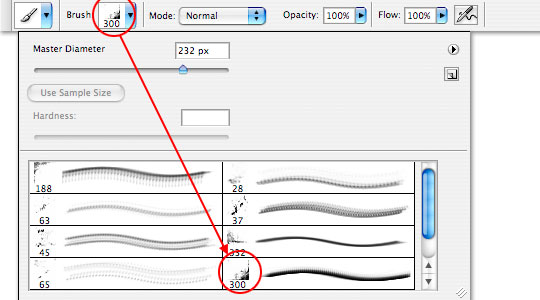
OK.. grab the brush tool by pressing B, then from the brushes drop down choose a brush that isn’t round. I’ll choose this nice grunge brush that’s bothered me for years because it only works on a right bottom corner…

2

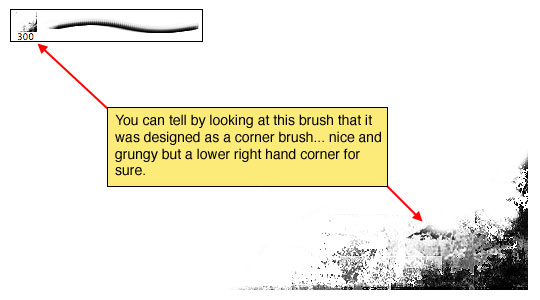
You can see in the Brushes palette that it’s a lower right hand corner grunge brush and painted on the canvas it obviously is.

3

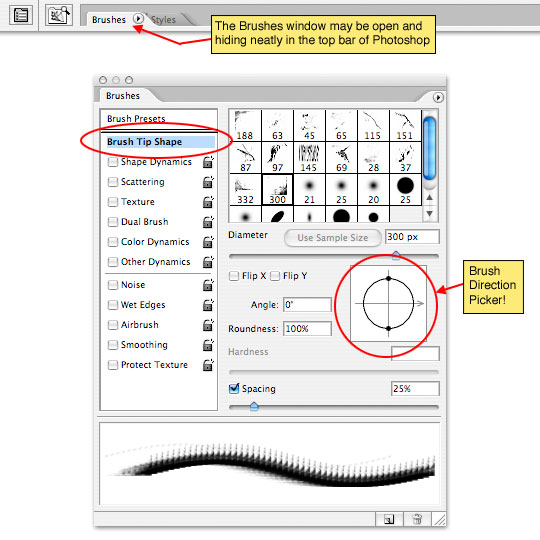
But, if we open the Brushes window by selecting Window>Brushes from the main menu (*note: this tool may already be open and tucked neatly away in the top bar, so check there too.)

Clicking on the Brush Tip Shape header opens up a whole window of hidden possibilities that will amaze and excite you… especially this great little circle over on the right! Yes, that’s right, you can just click and drag that neat little circle with the arrow in it until the brush is oriented exactly the way you’d like! Now every brush is multi-directional at the click of your mouse! What a GREAT trick!


NOTE : ALL CREDITS FOR THE ORIGINAL TUTORIAL MAKER :)


=================================
=== For more tutorials keep visiting ;) ===
= http://photoshop-manic.blogspot.com =
=================================

Friday, November 7, 2008

Awesome Photoshop Brushes

Adobe Photoshop Brushes that innovates the trends of graphics and logo designs. Best for art designs that makes your design more unique, custom and creative. There are several Photoshop brushes wich maybe helpful on your side. No need to create you own patterns or even style just to come up with custom graphics.

Below are best Photoshop brush lists I have seen in a while so make sure you check it out.


Download here


Download here


Download Here


Download here

Download here


Download here


Download here


Download here


Download here


Download here


Download Here


Download here


Download here


Download here


Download here


Download here

Download here


Download here


NOTE : ALL CREDITS FOR THE ORIGINAL TUTORIAL MAKER :)


=================================
=== For more tutorials keep visiting ;) ===
= http://photoshop-manic.blogspot.com =
=================================

Sunday, November 2, 2008

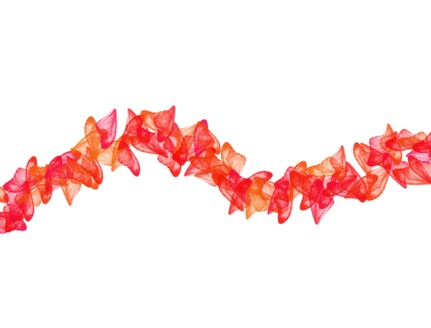
Create Custom Photo Brushes

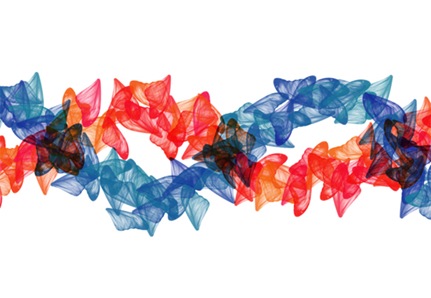
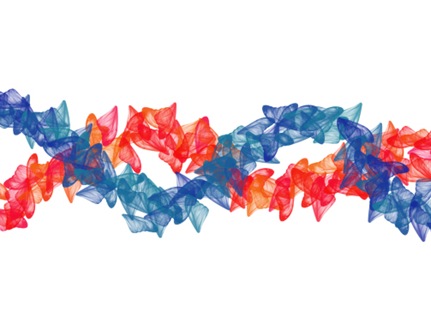
Preview of Final Results

Custom Photoshop brushes

Create Custom Photo Brushes Photoshop Tutorial

Step 1

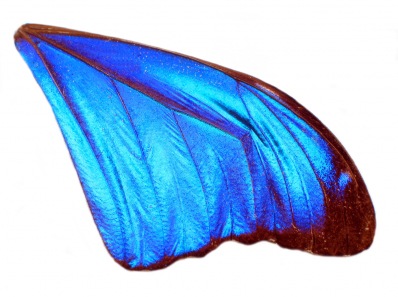
Open Photoshop and open a photo to use as a brush. It should be something that would work in a pattern, where the content of the photo is obvious as various sizes. I'm using this "blue angel wing" I found on iStockPhoto. IT should be relatively large, perhaps 1000 pixels for both width and height. If you create a brush at a small size, setting the brush to a larger size than originally created will cause it to lose resolution. But making it smaller is no problem, just like resizing a photo.


Blue angel wing

© ISTOCKPHOTO/DON WILKIE

Optional: You can download this file to use at http://www.istockphoto.com/file_closeup.php?id=130023 or use a similar one.

Step 2

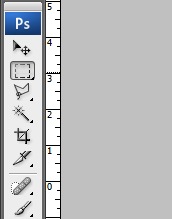
To first define a brush, we need to select the area. Click the Rectangular Marquee tool on the toolbar.

Photoshop Rectangular Marquee tool

Step 3

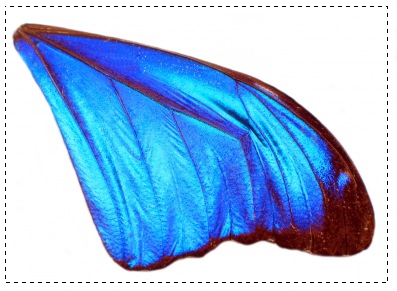
Click-and-drag a selection around the photo. We don't need to remove the white pixels first because they will be transparent in a brush.

Blue angel wings with rectangular marquee

Step 4

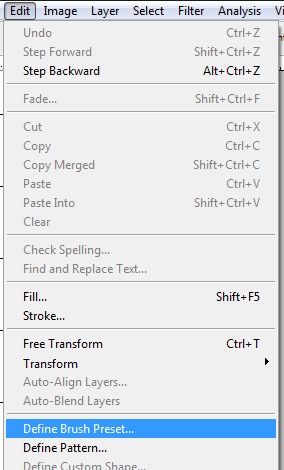
Go to Edit>Define Brush Preset.

Define Brush Preset menu item

Step 5

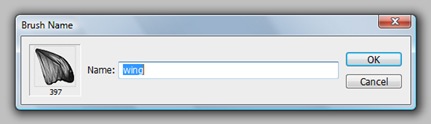
Name the brush something that matches the image, and click OK.

Defining a brush name

Step 6

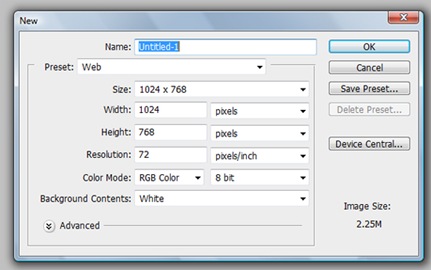
Now that we have the brush defined, go to File>New and create a new file at 1024 x 768. Click OK.

New Photoshop document using a web preset

Step 7

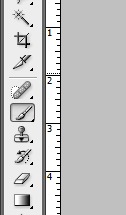
Click the Brush tool on the toolbar.

Brush tool selected

Step 8

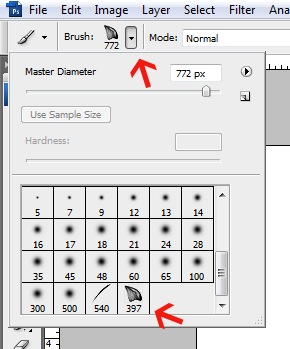
Click the arrow on the Options palette which will bring down the brush styles and size options. Scroll down and click the brush we just created. You can change the size here, or change it by pressing the left and right brackets to make the size smaller or larger. Bring the size of the brush to something much smaller, such as 100.

Brush options

Step 9

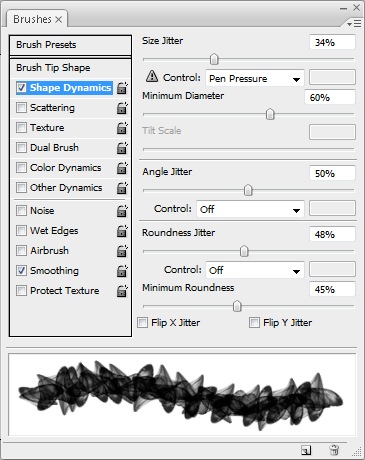
Go to Window>Brushes to bring up the Brushes palette. This palette has a lot of options for the Brush tool. Change the Shape Dynamics to these settings by clicking on Shape Dynamics then sliding the sliders. The brush can rotate to a certain degree as we brush. Try various settings as the preview shows how the brush will look.

Brush options - Shape Dynamics

Step 10

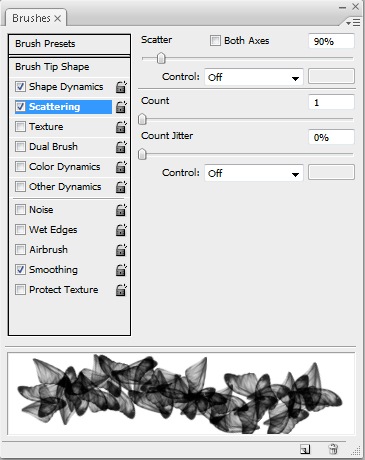
Change the Scattering to the settings shown here. Scattering does just that—scatter the brush as we brush. Try various settings as the preview shows how the brush will look.

Brush options - Scattering

Step 11

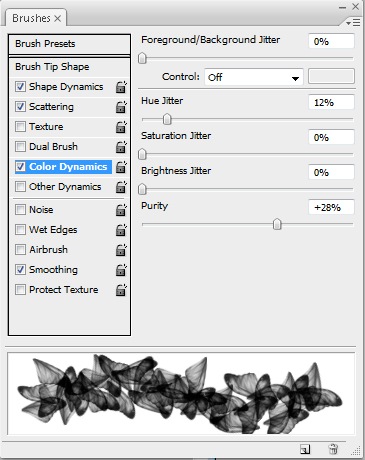
Change the Hue Jitter to 12%, because we want to somewhat adjust the hue as the brush is clicked-and-dragged, but within a certain range. Setting it to 100% would cause it to include the entire color range.

Brush options - Color Dynamics

Step 12

Now for the fun part: click-and-drag with the Brush tool in a curve.

Painting with custom brush

Step 13

Whatever color is selected in the Foreground in the toolbar is the color of the brush. You can have a jitter between the foreground and background color as well as hue jitter from the foreground color.

Painting with custom brush

Step 14

If you create a second curved brush path like this, click on New Layer on the Layers palette first, so that we can adjust the layer blending mode on the Layers palette. In this example, I adjusted the top layer blending mode to Multiply.

Experimenting with layer blending modes

Step 15

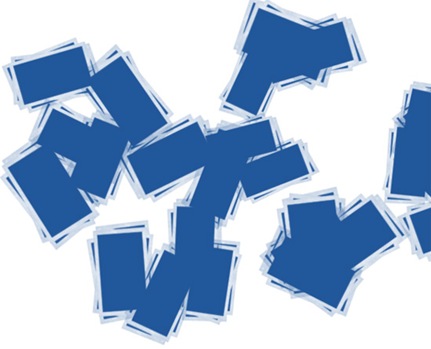
Try various photos and converting them to brushes using the same steps here. Brushes with added Shape Dynamics and Scattering can help create a unique background, such as this one created with a photo of Polaroids.

Polaroids brush

Step 16

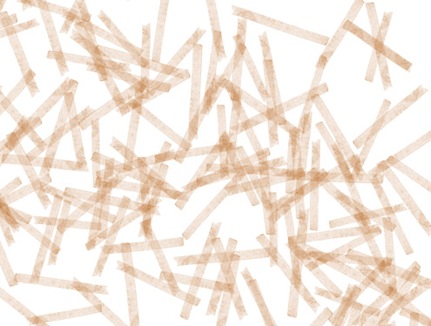
This one was created with a scan of tape. Besides creating unique paths, backgrounds are often created with such brushes.


Tape brush


================================
=== For more tutorials keep visiting ;) ===
= http://photoshop-manic.blogspot.com =
================================

Thursday, October 23, 2008

Photoshop Shortcuts

Note: this article is written in Mac Photoshop format. If you are using PC, Cmd = Ctrl and Opt = Alt.


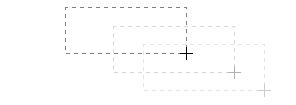
  • Drag selection

    With the Marquee tool, drag on the document (do not release the mouse yet), now hold down Spacebar, it will let you drag the undefined selection.


    screenshot


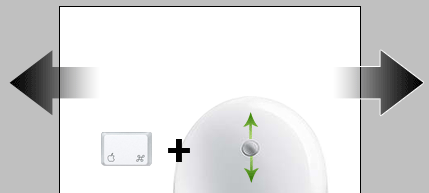
  • Navigate the document left or right

    Hold down the Cmd key and scroll up or down allows you to navigate the document left or right. For example, hold down Cmd + scroll up will navigate to right.

    screenshot


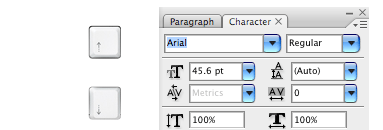
  • Browse the font list

    Put your cursor in the font list dropdown, you can browse the font list by pressing arrow Up or Down key.

    screenshot


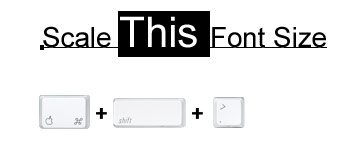
  • Scale font size

    Select the text that you want to scale the font size, press Cmd + Shift + > or < to increase / decrease font size.

    screenshot


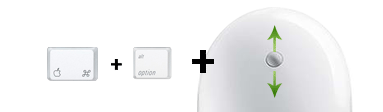
  • Zoom with the scroll wheel

    You can zoom in / out by Cmd + Opt + scroll up or down.


    screenshot


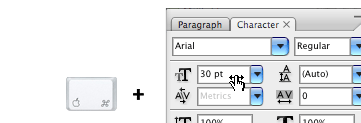
  • Drag to adjust numberic value

    Mouseover the input box, hold down Cmd + drag left or right to increase / decrease. Hold down Cmd + Opt or Shift key and drag can change the value in decimal or 10 interval. This shortcut works in all dialog palettes.

    screenshot


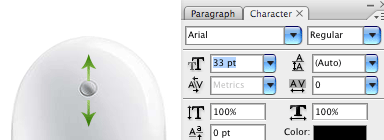
  • Scroll to adjust numeric value

    Put the cursor in the input box, scroll up or down to increase / decrease value. This shortcut works in all dialog palettes.

    screenshot


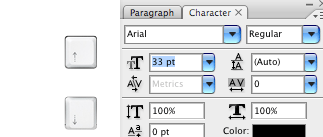
  • Arrow up / down to adjust numeric value

    Put the cursor in the input box, press arrow Up or Down to increase / decrease. Hold down Shift and press arrow Up or Down will change value in 10 interval.

    screenshot


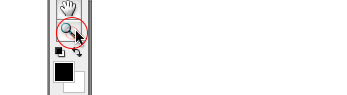
  • Zoom to 100%

    Double click on the Zoom tool will zoom document to 100%.

    screenshot


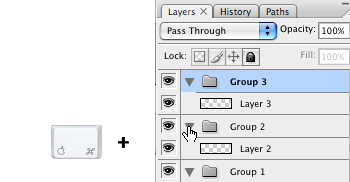
  • Collapse or expand all layer groups

    You can collapse or expand all root-level layer groups by holding down Cmd + click on the triangle icon. Hold down Cmd + Opt + click on the triangle icon will collapse or expand all level layer groups.

    screenshot


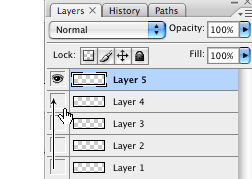
  • Show / hide in a row

    If you need to show / hide more than one layers, instead of clicking one by one, you can click on the visibility icon and drag in a row.

    screenshot


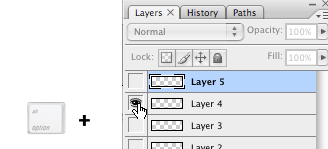
  • Hide other layers

    Hold down Opt + click on the visibility icon will hide all other layers.

    screenshot


  • Navigate layer blending mode

    Opt + Shift + "-" or "+" key allows you to navigate through the blending mode dropdown.
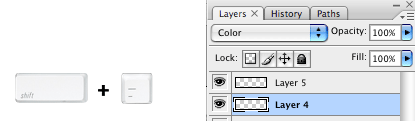

    screenshot


  • Set specific blending mode


    Opt + Shift + C, N, M, S, D… allows to set layer to specific blending mode.

    For examples:

    Normal = Opt + Shift + N

    Screen = Opt + Shift + S

    Multiply = Opt + Shift + M

    Color = Opt + Shift + C
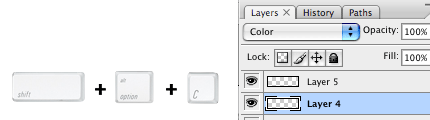


    screenshot


  • Lock layer transparency

    Press forward slash ("/") to lock layer transparency.
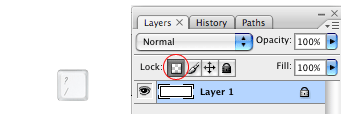

    screenshot


  • Load Channel selection

    You probably know that Cmd + number keys (1, 2, 3) will activate the channels in sequent. Press Cmd + Opt + number keys will load the selection. For example, press Cmd + Opt + 4 will load Alpha channel 1.
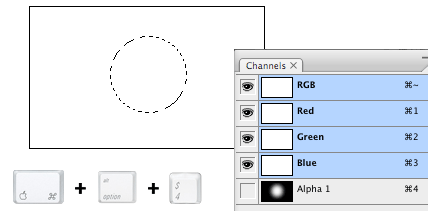

    screenshot


  • Tool panels

    Press Tab to toggle tool panels.


    screenshot


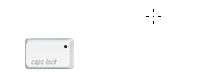
  • Precise cursor

    Caps lock will display tool cursor in precise mode.

    screenshot


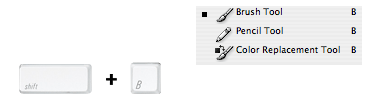
  • Navigate the tool list

    You can navigate through the tool list by pressing Shift + tool shorcut. For example: B = Brush tool, if you press Shift + B again, you will switch to Pencil tool.

    screenshot


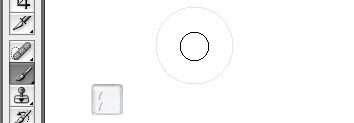
  • Increase / decrease brush size

    With the Brush tool selected, you can increase / decrease the brush size by pressing [ or ] key (square bracket key). Press Shift + [ or ] will increase / decrease brush hardness.

    screenshot


  • Opacity

    You can set the layer opacity by pressing the number keys (ie. 1 = 10%, 2 = 20%…). When you have the brush tool selected, pressing the number keys will adjust the brush opacity.


    screenshot


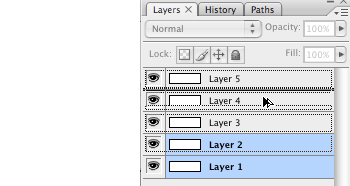
  • Duplicate layer

    There are several shortcuts to duplicate layers.

    1. You can hold down Cmd + Opt + drag to duplicate the active layer.

    2. Cmd + Opt + arrow keys (Up, Down, Left, Right).


    3. Cmd + J will duplicate the active layer in exact position.

    4. Hold down Opt + drag within the Layers palette can also duplicate layers.

    screenshot


  • Copy visible and paste in a new layer

    Press Cmd + Opt + Shift + E will copy the visible layers and paste in a new layer.


    screenshot


  • Change workspace background

    By default Photoshop use grey for the workspace background color. You can change that by:

    1. select your favorite color

    2. choose the Paint Bucket tool

    3. Hold down Shift + click on the working area (outside the document area)
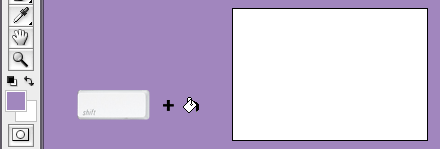

    screenshot


    Update: right-click on the workspace area to get a dropdown menu - allows you to set the background to black, grey, or a custom color (commented by Todd Patrick).


  • Fill background or foreground color

    Opt + Delete (Backspace) = fill the layer with foreground color.

    Cmd + Delete (Backspace) = fill the layer with background color
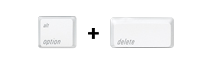

    screenshot


    Update:

    Cmd + Shift + Delete (Backspace) = Fill non-transparent pixels with background color


    Opt + Shift + Delete (Backspace) = Fill non-transparent pixels with foreground color

    (commented by André Dion)


  • Switch between document windows

    Ctrl + Tab will switch between document windows.


    screenshot


  • Load layer transparent


    Cmd + click on the layer thumbnail will load its transparency.
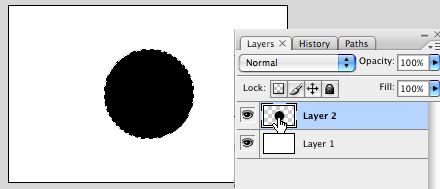

    screenshot


  • Scale proportionally from center

    When you are using the Marquee tools or Free Transform, hold down Opt + Shift + drag will scale proportionally from the center.
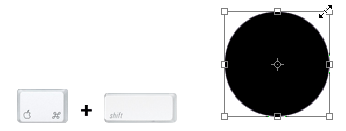

    screenshot


  • Shortcut to Eyedropper

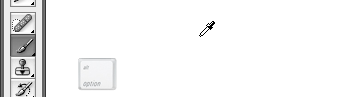
    If you have the Brush tool selected, hold down Opt key will quickly activate the Eyedropper tool. Hold down Opt + Shift will activate the Color Sampler Tool.


    screenshot


  • Finally…

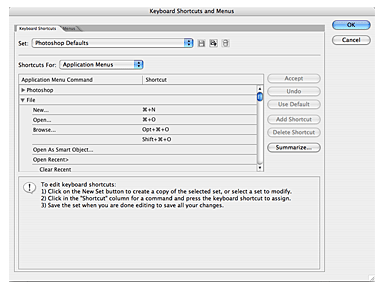
    Finally, if you want to check or set your own custom shortcuts, press Cmd + Opt + Shift + K will bring up the Keyboard Shortcuts panel.
    screenshot